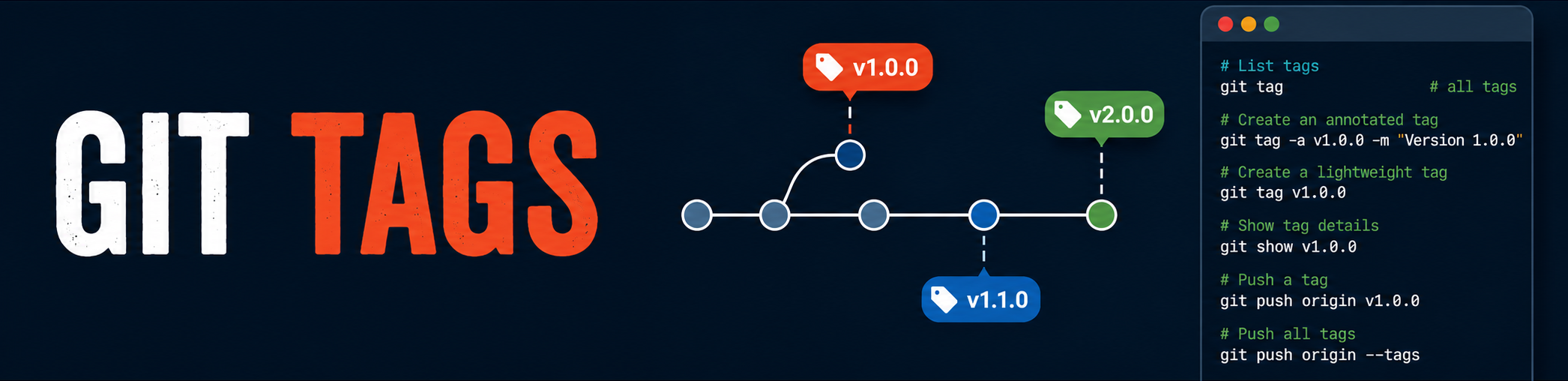
Git tags, the five-minute cheatsheet
A tag marks a specific commit as important - usually a release. Unlike a branch, a tag never moves: once created, it points to a single commit forever. That property is why every release process in the world relies on tags, and why the handful of commands below is worth knowing by heart.
A tag is a bookmark, a branch is a pointer
A branch advances with every commit you make on it. A tag stays exactly
where you put it, forever. In the classic revision graph below, the main
branch (also called the trunk, often named “main” or “master”) and the
other branches keep growing - but the tag T1 is frozen on the commit it
was created from.
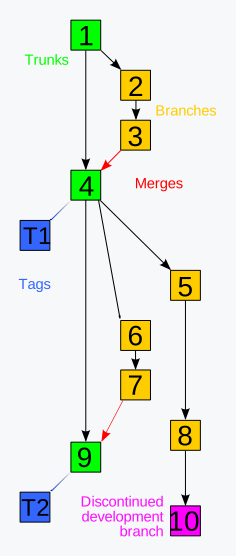
A tag is a permanent bookmark; a branch is a moving pointer. If the code at a tag needs to change, you don’t move the tag - you create a branch from it.
Two kinds of tags
| Kind | What it stores | Use it for |
|---|---|---|
| Annotated | A full object: author, date, message, optional GPG signature | Releases (recommended) |
| Lightweight | A bare name pointing at a commit | Temporary / private markers |
Annotated tags are real Git objects with their own metadata - that’s what you want for anything another human (or a CI pipeline) will depend on. Lightweight tags are just labels; keep them for local, throwaway markers.
Create
# Annotated tag on the current commit (recommended)
git tag -a v1.0.0 -m "Release version 1.0.0"

# Lightweight tag
git tag v1.0.0-light

# Tag a specific past commit by its hash
git tag -a v0.9.0 9fceb02 -m "Beta release"
Forgot to tag before more commits landed? No problem - the third form tags any commit retroactively.
List & inspect
git tag                  # List all tags
git tag -l "v1.*"        # List tags matching a pattern
git show v1.0.0          # Tag details + the commit it points to
Push - tags are NOT pushed by default
This is the classic trap: git push sends your commits and advances the
remote branch, but does nothing with tags. They live in a separate
namespace and only travel when pushed explicitly.
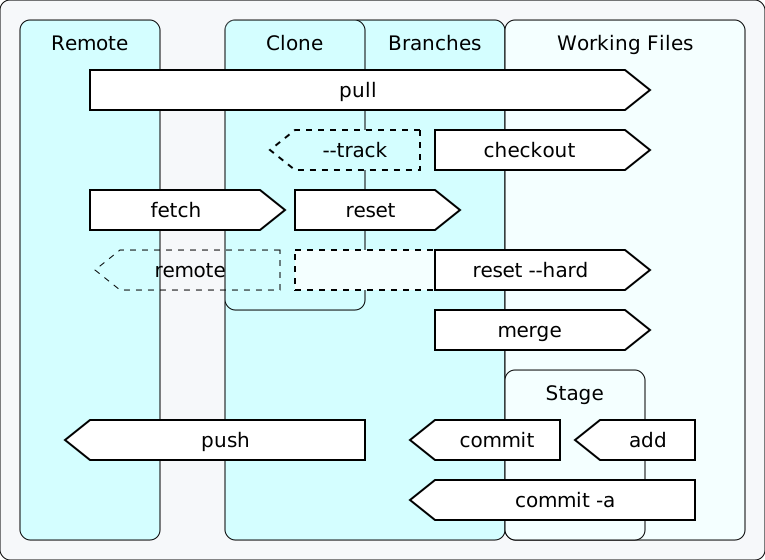
git push origin v1.0.0   # Push a single tag
git push origin --tags   # Push all tags at once
If your release “disappeared”, check the remote: nine times out of ten, the tag was simply never pushed.
Check out the code at a tag
git checkout v1.0.0              # Inspect the code at the tag (detached HEAD)
git checkout -b hotfix v1.0.0    # Create a branch from the tag to make changes
Checking out a tag puts you in detached HEAD state - fine for looking around or building, but any commit you make there belongs to no branch. To actually fix an old release, use the second form: create a branch from the tag first.
Delete
git tag -d v1.0.0                  # Delete locally
git push origin --delete v1.0.0    # Delete on the remote
Naming them well: semantic versioning
The de facto convention for release tags is vMAJOR.MINOR.PATCH
(e.g. v2.4.1):
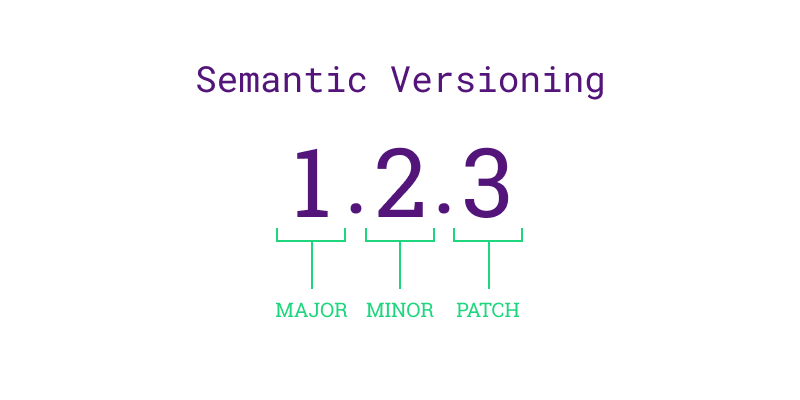
- MAJOR - incompatible (breaking) changes
- MINOR - new features (backwards compatible)
- PATCH - bug fixes
Bump the leftmost affected number and reset the ones to its right. Your users can then read the risk of an upgrade straight from the tag name.
Key takeaways
- A tag is a permanent bookmark; a branch is a moving pointer.
- Prefer annotated tags for anything you publish.
git pushignores tags - push them explicitly.- To change the code at a tag, create a branch from it first.
Images: Git logo by Jason Long (CC BY 3.0), revision graph (CC BY-SA 3.0), Git operations diagram by Daniel Kinzler (CC BY 3.0), and semantic versioning by Leetrout (CC BY-SA 4.0) - all via Wikimedia Commons.


