The Vim cheatsheet I keep coming back to
Every few months I watch someone open Vim on a server, panic, and reach for
nano. And I must admit that, sometimes, it could be me. This is the cheatsheet I keep within arm’s reach instead: the
commands I actually use daily as a developer, plus a handful of power
techniques that turn Vim from “the editor I can’t quit” into the fastest
tool in the terminal.
Modes: the mental model
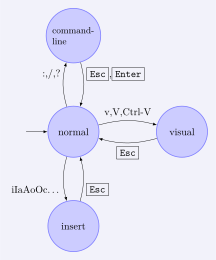
Everything in Vim makes sense once you accept that it is a modal editor.
You are always in a mode, and keys mean different things depending on which
one. There are four you care about: Normal (move and operate),
Insert (type text), Visual (select), and Command-line (run :
commands).
| Key | Action |
|---|---|
i | Insert before cursor |
I | Insert at line start |
a | Append after cursor |
A | Append at line end |
o | Open new line below |
O | Open new line above |
v | Visual character mode |
V | Visual line mode |
Ctrl+v | Visual block mode |
Esc | Return to Normal mode |
: | Enter Command-line mode |
When in doubt, hit
Esc. Normal mode is home base - every workflow below starts there.
Moving around
Motions are the vocabulary of Vim: every edit command below can be combined
with them (delete + word = dw).
| Key | Action |
|---|---|
h j k l | ← ↓ ↑ → (character) |
w / W | Next word / WORD start |
b / B | Prev word / WORD start |
e / E | Word / WORD end |
0 | Start of line |
^ | First non-blank char |
$ | End of line |
gg | First line of file |
G | Last line of file |
:N | Go to line N |
% | Jump to matching bracket |
{ / } | Prev / next blank line |
Ctrl+d | Scroll half-page down |
Ctrl+u | Scroll half-page up |
zz | Center cursor on screen |
Editing
| Key | Action |
|---|---|
x | Delete char under cursor |
X | Delete char before cursor |
dd | Delete (cut) current line |
D | Delete to end of line |
dw | Delete to next word |
yy | Yank (copy) current line |
yw | Yank word |
p | Paste after cursor |
P | Paste before cursor |
cc | Change entire line |
cw | Change word |
C | Change to end of line |
r | Replace single char |
R | Enter Replace mode |
~ | Toggle case of char |
J | Join line below to current |
Undo & redo
| Key | Action |
|---|---|
u | Undo last change |
U | Undo all changes on line |
Ctrl+r | Redo |
. | Repeat last change |
.is the most underrated key in Vim. Make a change once, then replay it anywhere with a single keystroke.
Search & replace
| Key | Action |
|---|---|
/pat | Search forward for pattern |
?pat | Search backward for pattern |
n | Next match |
N | Previous match |
* | Search word under cursor → |
# | Search word under cursor ← |
:%s/old/new/g | Replace all in file |
:%s/old/new/gc | Replace all with confirm |
:s/old/new/g | Replace in current line |
:noh | Clear search highlight |
Files, buffers, windows & tabs
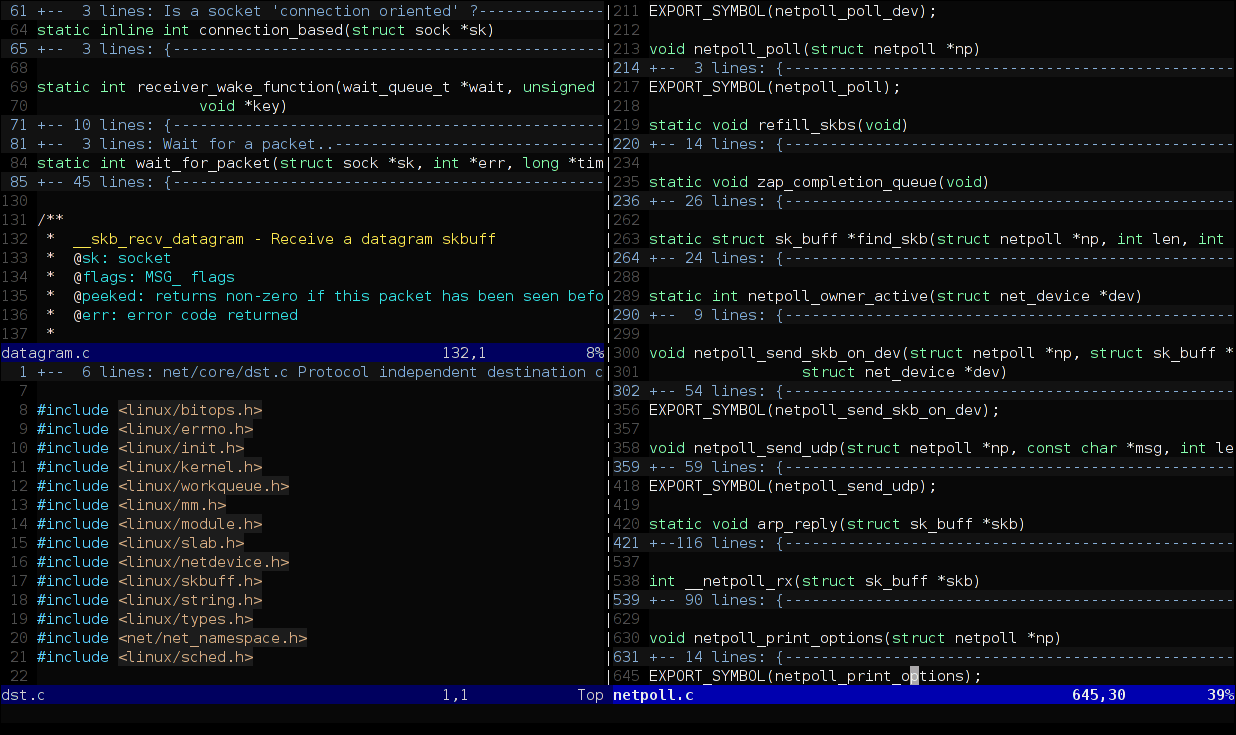
Vim happily edits many files at once: buffers are open files, windows are views onto them, tabs are collections of windows.
File operations
| Key | Action |
|---|---|
:w | Write (save) file |
:w file | Save as file |
:q | Quit |
:q! | Quit without saving |
:wq | Save and quit |
ZZ | Save and quit (shortcut) |
ZQ | Quit without saving (shortcut) |
:e file | Open / edit file |
:r file | Read file into buffer |
:wa | Save all open buffers |
:qa! | Close all, discard changes |
Buffers & windows
| Key | Action |
|---|---|
:ls | List open buffers |
:bn | Next buffer |
:bp | Previous buffer |
:bd | Delete (close) buffer |
:sp | Split window horizontally |
:vsp | Split window vertically |
Ctrl+w w | Cycle between windows |
Ctrl+w h/j/k/l | Navigate windows ← ↓ ↑ → |
Ctrl+w q | Close current window |
Ctrl+w = | Equalise window sizes |
Tabs
| Key | Action |
|---|---|
:tabnew | Open new tab |
:tabe file | Open file in new tab |
gt | Next tab |
gT | Previous tab |
:tabclose | Close current tab |
:tabonly | Close all other tabs |
Visual mode
| Key | Action |
|---|---|
y | Yank selected |
d | Delete selected |
c | Change selected |
> | Indent selected right |
< | Indent selected left |
~ | Toggle case of selected |
u | Lowercase selected |
U | Uppercase selected |
: | Run ex command on range |
gv | Re-select last visual |
Marks & jumps
| Key | Action |
|---|---|
ma | Set mark a at cursor |
`a | Jump to mark a (exact) |
'a | Jump to mark a (line) |
`` | Jump to previous position |
Ctrl+o | Jump list - older |
Ctrl+i | Jump list - newer |
:marks | List all marks |
Macros & registers
| Key | Action |
|---|---|
qa | Record macro into register a |
q | Stop recording macro |
@a | Run macro in register a |
@@ | Repeat last macro |
5@a | Run macro a × 5 |
:reg | Show all registers |
"ay | Yank into register a |
"ap | Paste from register a |
"+y | Yank to system clipboard |
"+p | Paste from system clipboard |
Text objects
Text objects are why ciw feels like magic: they describe what to operate
on (inner word, inside quotes…), independent of where the cursor sits within
it.
| Key | Action |
|---|---|
ciw | Change inner word |
caw | Change around word |
ci" | Change inside quotes |
ci( | Change inside parens |
ci{ | Change inside braces |
ci[ | Change inside brackets |
dit | Delete inner HTML tag |
yip | Yank inner paragraph |
vas | Visual select around sentence |
vap | Visual select around paragraph |
Indentation & folding
| Key | Action |
|---|---|
>> | Indent current line right |
<< | Indent current line left |
=G | Auto-indent to end of file |
gg=G | Auto-indent entire file |
gq | Format/wrap selected text |
za | Toggle fold at cursor |
zo / zc | Open / close fold |
zR / zM | Open / close all folds |
Useful Ex commands
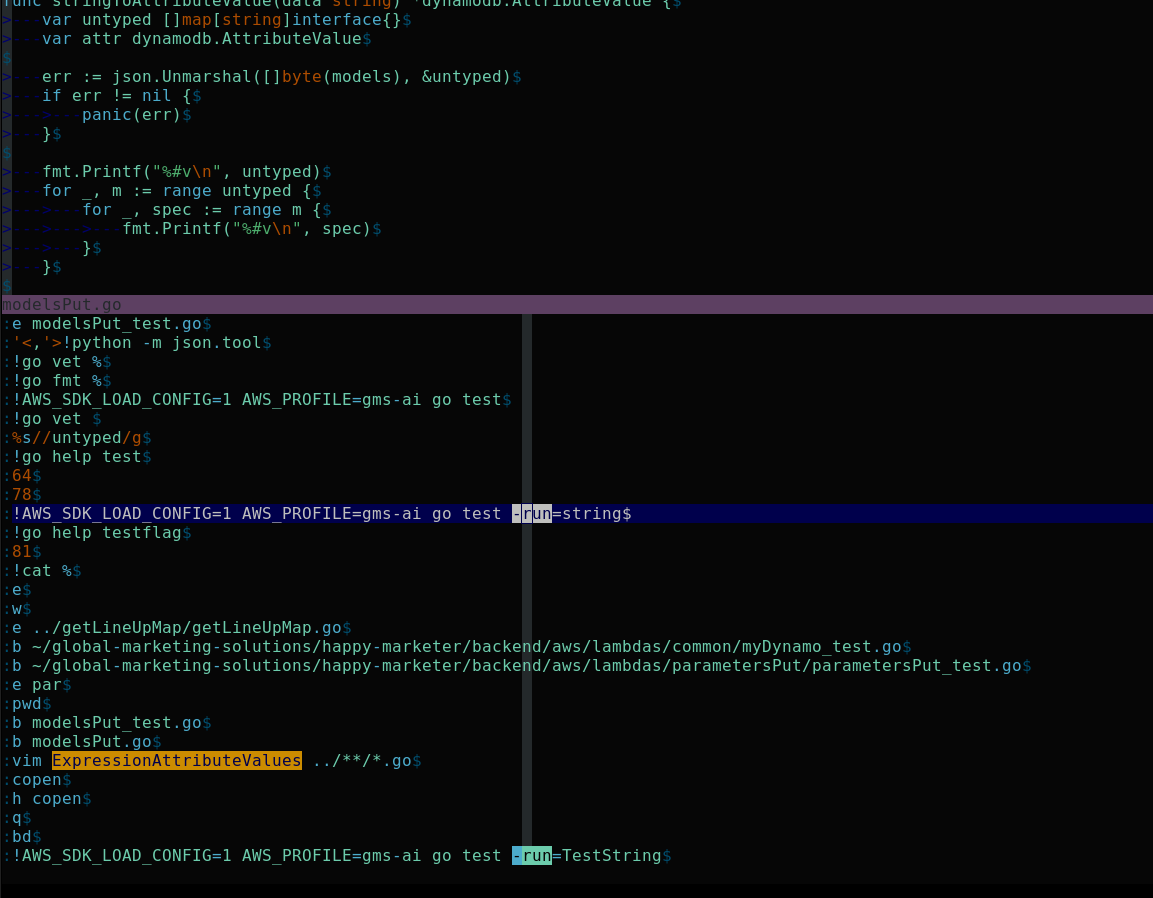
The command line (:) is a full editor language of its own - and q: even
opens a searchable history of everything you’ve typed there.
| Key | Action |
|---|---|
:set nu | Show line numbers |
:set rnu | Relative line numbers |
:set ic | Case-insensitive search |
:set paste | Paste mode (no autoindent) |
:syntax on | Enable syntax highlighting |
:! cmd | Run shell command |
:r !cmd | Insert shell output |
:sort | Sort selected lines |
:g/pat/d | Delete lines matching pattern |
:v/pat/d | Delete lines NOT matching |
Power techniques
The tables above are the vocabulary. Here is the grammar - the combinations that pay for the learning curve.
Comment a block of lines with Visual Block
For # comments (Python / Bash / YAML) - works the same for // or --:
- Move to the first line to comment, in the first column.
- Enter Visual Block mode:
Ctrl+v. - Select down to the last line with
j(or a count like9j). - Press
I(capital i - insert at block start). - Type
#, then pressEsc- the#appears on every selected line.
To uncomment: put the cursor on the # of the first line, Ctrl+v,
select down with j, then x - the whole column of # disappears at once.
Comment a range with :norm
- Visually select lines (with
V) or use a line range like:5,20. - Run
:'<,'>norm I#- inserts#at the start of each line. - To uncomment:
:'<,'>norm ^x- jumps to the first non-blank char and deletes it.
:normreplays any Normal-mode keystrokes on every line of a range. Pair it with anything - it’s bulk editing without recording a macro.
Append text to the end of multiple lines
- Visual Block:
Ctrl+v, select lines withj. - Press
$to extend the selection to each line’s end. - Press
A, type your text, pressEsc.
Example: append a comma to 10 lines for a quick CSV fix -
Ctrl+v → 9j → $ → A → , → Esc.
Increment numbers in a column
- Visual Block:
Ctrl+v, select the number column. gCtrl+a- sequentially increments each number (1, 2, 3…);Ctrl+aalone increments all by 1.gCtrl+x- sequentially decrements.
Global search and execute
:g/TODO/d- delete every line containing TODO.:g/def /norm O# ---- insert a banner before every Python function.:v/import/d- keep only lines matching import (inverse global).
Dot-repeat a change across the file
- Make the change once (e.g.
ciw→ type replacement →Esc). - Jump to the next target with
n. - Repeat with
.- iteraten.n.through the file.
More surgical than
:%s///g- you eyeball each occurrence before applying.
Sort and deduplicate
:sort- sort selected lines alphabetically;:sort!reverses.:sort u- sort and remove duplicates.:sort n- sort numerically.
Run a macro on every matching line
- Record the macro into register q:
qq…q. - Run
:g/pattern/norm @q- executes it on every matching line.
:wq - write. quit. ship it.
Images: Vim logo (GPL) and Vim modes diagram by Harp (CC BY-SA 4.0); split-window screenshot (GPL) and command-history screenshot by Vitaly Zdanevich (CC0) - all via Wikimedia Commons.


